-
Gujarat, India
- info@icontechnology.in
- 24/7 Customer Support
Gujarat, India
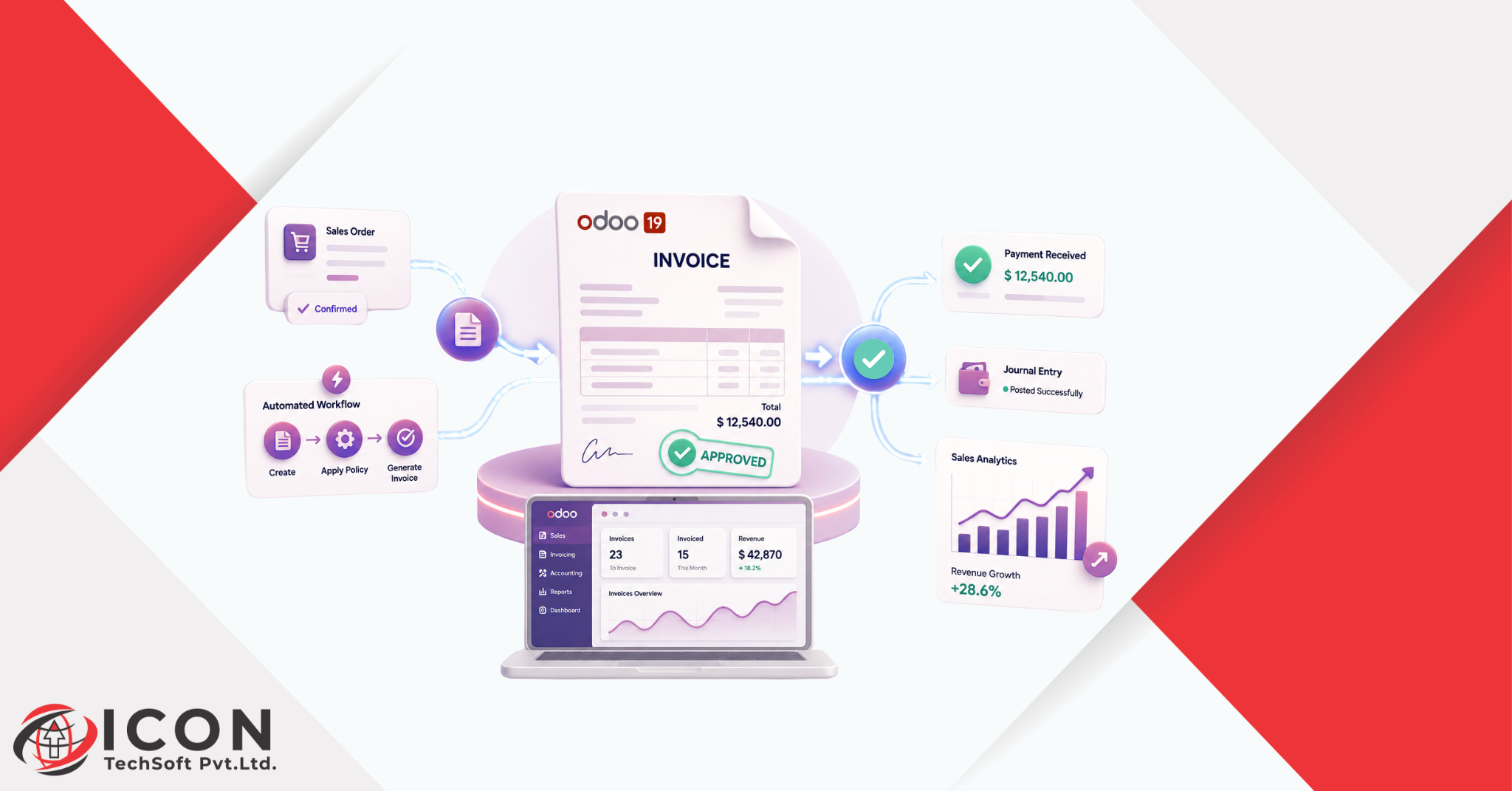
In Odoo 19 Invoicing Policies Managing the invoicing process effectively is crucial for ensuring smooth sales operations and maintaining accurate financial records. Different businesses follow different billing strategies based on their products, services, and delivery processes. While some organizations prefer to invoice customers immediately after a sales order is confirmed, others choose to generate invoices only after the ordered items have been delivered.
To support these varying business requirements, Odoo 19 provides flexible invoicing policies within the Sales module. These policies determine when a customer invoice can be created and which quantities should be considered for billing. By selecting the appropriate invoicing method, businesses can align their sales workflow with operational and financial objectives.
5. Click Save to apply the changes.
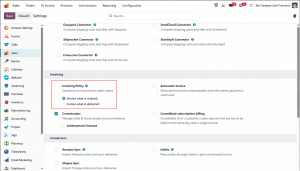
After users save the invoicing policy, Odoo automatically applies the selected option to all newly created products. This helps maintain a consistent invoicing process across the sales workflow and reduces manual configuration for future products.
However, products created before this configuration change retain their existing invoicing settings. To apply the new policy, users must update the invoicing method individually for each product record.
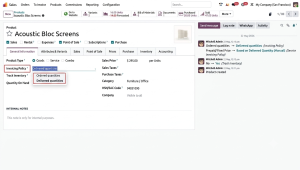
To modify the invoicing policy for an existing product:
This flexibility allows businesses to use different invoicing methods for different products. For example, businesses can invoice services upon order confirmation, while they can invoice physical products only after delivery.
The Invoice Based on Ordered Quantities policy allows businesses to create customer invoices immediately after confirming a sales order. In this method, invoicing is based on the ordered quantity rather than the delivered quantity.
To understand this workflow, follow these steps:
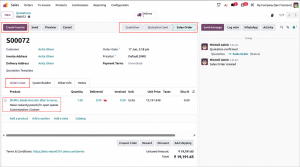
5. Once the sales order is confirmed, click the Create Invoice button.
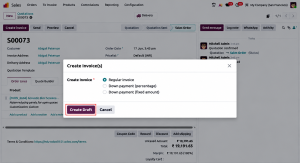
6. Choose the preferred invoice option:
7. Click Create Draft Invoice to generate the invoice.
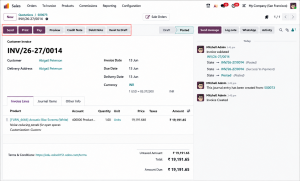
8. Review the draft invoice and verify all details.
9. Click Confirm to post the customer invoice.
10. After confirming the bill, use the Pay button to register payment or Send & Print to share the invoice with the customer.
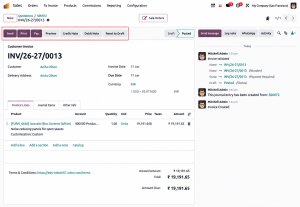
The Invoice Based on Delivered Quantities policy ensures that customers are invoiced only for the products that have been delivered. This method helps businesses manage partial deliveries and bill customers after they complete the fulfillment process.
To understand this workflow, follow these steps:
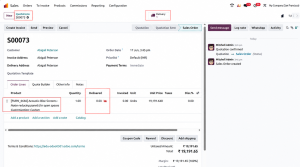
5. At this stage, the Create Invoice button will not generate an invoice because no products have been delivered yet.
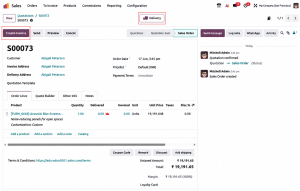
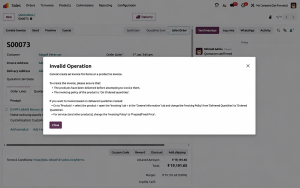
If you attempt to create an invoice before validating the delivery order, Odoo will prevent the action and display a warning message. Since the product is configured with the Delivered Quantities invoicing policy, the system requires the delivery to be completed before an invoice can be generated.
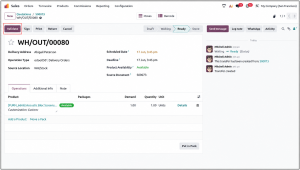
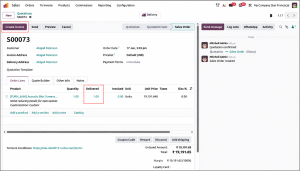
After validating the delivery, return to the sales order. Odoo automatically updates the delivered quantity on the sales order.
Invoicing policies in Odoo 19 provide businesses with the flexibility to manage their billing process according to operational requirements. Whether businesses generate invoices based on ordered quantities or delivered quantities, Odoo keeps sales, inventory, and accounting activities seamlessly connected.
The Invoice Based on Ordered Quantities policy is ideal for businesses that prefer to bill customers immediately after order confirmation, while the Invoice Based on Delivered Quantities policy helps ensure that customers are charged only for products that have actually been delivered. By selecting the appropriate invoicing method, organizations can improve billing accuracy, reduce manual effort, and streamline their overall sales workflow.
With the right invoicing policy in place, businesses can enhance cash flow management, minimize invoicing discrepancies, and create a more efficient order-to-invoice process within Odoo 19.