-
Gujarat, India
- info@icontechnology.in
- 24/7 Customer Support
Gujarat, India
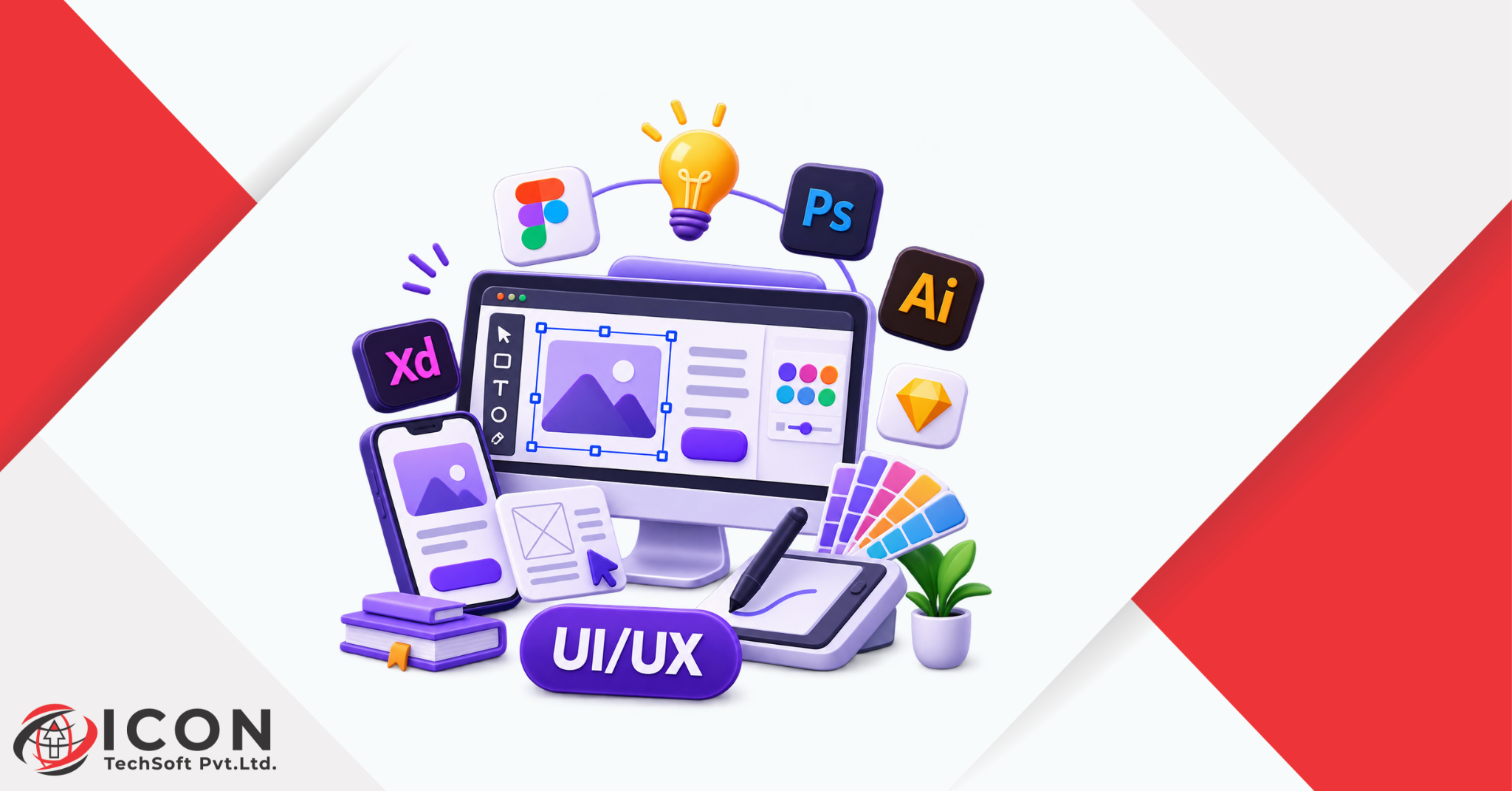
A few years ago, picking UI UX design tools was simple. You opened one app, drew some boxes, made a clickable prototype and handed the files to a developer. Today the picture looks very different. New apps launch every month, old favorites add smart features overnight, and almost every product now says it can design a screen from a single sentence.
If you are a student, a working designer or someone switching careers, this can feel like too much. Which UI UX design tools are real, and which ones are just noise? Where should you spend your limited learning time? Those are fair questions, and this guide is written to answer them in plain language.
The biggest change is the arrival of AI. Modern AI UI design tools can turn a short prompt into a full layout, suggest color palettes, write interface text and even build a rough prototype in minutes. At the same time, the core of design has not changed. People still need interfaces that are clear, kind and easy to use. The tools only help you reach that goal faster.
In this article, we look at the best UI UX tools that are shaping the next generation of design work. We explain what makes a tool worth your time, compare traditional apps with AI-powered ones, and list 15 tools across five groups. We also cover free and paid options, how beginners should start, and where the future of UI UX design tools is heading.
By the end, you will have a clear plan for what to learn first and what can wait.
Not every popular app deserves a place in your toolkit. Before you spend weeks learning something new, check it against a few simple points. These points help you separate the best UI UX design tools to learn in 2027 from tools that will fade away in a year.
A good tool saves you time or improves the quality of what you make. If it only adds one more login and one more tab, skip it. Ask yourself what task it makes easier: sketching ideas, building prototypes, testing with users or sharing files with developers.
Design work never happens in one app alone. Your UX design software should work well with your handoff tools, your project boards and your team chat. Tools with strong plugins, exports and integrations are safer bets because they grow with you.
A large community means more tutorials, templates, plugins and answers when you get stuck. It also means companies are more likely to ask for that skill in job posts. Before you commit, search for the tool on job boards and see how often it appears.
AI features should help you think and work faster, not replace your judgment. The most useful AI UX design tools let you review, edit and undo what the AI creates. If the output is hard to change, it will slow you down later.
Good design is inclusive and shared. Look for tools that help you check color contrast, support keyboard navigation in prototypes and allow comments from teammates. These features are quickly becoming basic expectations, not extras.
Free plans and clear pricing matter, especially for beginners. A tool that lets you try real projects before paying is a much safer choice than one that locks every useful feature behind a high plan.
Keep these six points in mind as you read the list below. They will help you decide which UI UX design tools truly belong in your workflow.
The list below covers emerging UI UX design tools as well as trusted names that keep improving. They are grouped by the job they do, so you can pick what matches your needs. Features and plans change often, so always check each tool’s own website for the latest details.
This group is the fastest growing part of the market. These are the best AI tools for interface design if you want to move from idea to screen quickly.
1. Figma with its AI features
Figma is still the center of most design teams, and its AI features now sit inside the same workspace. You can generate first drafts of layouts, rename layers, create interface text and turn rough ideas into working designs. The big benefit is that everything stays in one file your team already uses. If you only learn one of the UI design tools on this list, Figma is the safest choice.
2. Uizard
Uizard turns text prompts, hand drawn sketches and screenshots into editable screens. It is friendly for founders, product managers and beginners who want to test an idea without learning a complex app first. Designers often use it to create fast concept screens before moving into a deeper tool.
3. Google Stitch
Stitch, from Google, creates interface designs from text or image prompts and lets you export to Figma or code. It started life as Galileo AI before Google picked it up. It is a good example of how AI tools for UI UX designers can speed up the early exploration stage, where you want many ideas quickly.
4. Relume
Relume uses AI to build sitemaps and wireframes for websites. You describe your project, and it suggests pages, sections and layout blocks that you can send to Figma or Webflow. It is especially helpful for agencies and freelancers who plan many websites and need a solid structure in less time.
These UI design tools help you move beyond rough ideas into polished screens and realistic prototypes.
5. Penpot
Penpot is an open source design tool that runs in the browser. It uses web standards such as CSS and SVG, which makes the bridge between design and code easier to understand. Teams that care about data control or want a free option often pick it. It is also a great way to learn how interface design connects to front end work.
6. ProtoPie
ProtoPie is built for high fidelity prototypes that feel like real apps. You can add sensor input, voice, animation and logic without writing code. If you plan to design mobile apps, smart devices or complex interactions, ProtoPie is one of the strongest emerging UI UX design tools for testing how a product really feels.
7. Framer
Framer began as a prototyping app and has grown into a full website builder. You can design visually, add animation and publish a live site from the same place. For designers who want to ship real websites without waiting for a developer, it is a very practical skill.
Before any pixel is polished, you need structure. This group of UX design software helps you plan flows and layouts clearly.
8. Balsamiq
Balsamiq gives wireframes a deliberate hand drawn look. That rough style keeps people from arguing about colors and fonts too early and helps them focus on structure and flow. It is quick to learn, which makes it a good first stop for beginners.
9. Webflow
Webflow lets designers build responsive websites visually, with clean code produced behind the scenes. It sits between design and development, and it is popular with agencies and freelancers. Learning it gives you a strong advantage if you want to deliver finished websites, not only mockups.
10. Whimsical
Whimsical is a light tool for flowcharts, user flows, wireframes and mind maps. It is fast and simple, so teams use it to map a product before opening a heavier design app. If you struggle to explain how a user moves through a product, this tool helps a lot.
Good design is checked with real people. These tools help you learn what users actually do, not what you hope they do.
11. Maze
Maze lets you test prototypes with real users and returns clear reports on success rates, click paths and drop off points. You can connect it to your prototype and get results in a short time, which suits fast moving teams.
12. Optimal Workshop
Optimal Workshop focuses on information architecture. It offers card sorting and tree testing, which help you check whether menus and labels make sense to users. If you work on large websites or complex apps, this is a valuable skill.
13. Hotjar
Hotjar shows how people behave on a live site through heatmaps, session recordings and short surveys. It helps you spot where visitors get stuck and gives you real evidence for your next design change.
Inclusive design and clear teamwork are no longer optional. These two tools make both easier.
14. Stark
Stark helps you check color contrast, simulate different kinds of vision and find accessibility problems before a design reaches developers. Building the habit of testing early saves time and makes your work usable by more people.
15. Miro
Miro is an online whiteboard where teams run workshops, map journeys, sort research notes and brainstorm together. It is useful for remote teams, and it helps designers share their thinking with people outside the design team, such as managers and developers.
AI is no longer a side feature. It now touches almost every stage of the design process, and understanding where it helps is the key to using AI UX design tools well.
AI can summarize interview notes, group survey answers into themes and draft user personas from raw data. This saves hours of manual sorting. Still, a designer must read the results carefully, because AI can miss small but important details in what people say.
Instead of staring at a blank canvas, you can type a short prompt and get several layout options in seconds. These first drafts are rarely perfect, but they give you something to react to. Many designers say this is the most useful change, because it removes the hardest part of any project, which is starting.
Smart tools can suggest color palettes, match type pairings, resize layouts for different screens and clean up messy layers. Work that once took an afternoon can now take a few minutes, leaving more time for the decisions that really matter.
Button labels, error messages and onboarding text can be drafted with AI and then edited by a person. This helps keep interface text consistent across a whole product.
Some tools now turn static screens into clickable flows and export clean code or design specs. This shortens the gap between designer and developer and cuts down on back and forth.
AI can spot patterns in heatmaps, recordings and survey answers much faster than a human. It can point out where users drop off and suggest fixes worth testing.
AI cannot understand your users the way you do. It does not feel the frustration of a confusing checkout page or know the culture and context of your customers. It also repeats common patterns, which can make products look alike. Your job is to bring empathy, taste and critical thinking. The tools bring speed. The strongest designers use both.
Many people ask whether AI tools will replace the apps designers have used for years. The honest answer is no, at least not soon. Each type has strengths, and most teams use a mix of both. The table below shows the main differences.
| Area | Traditional UI UX design tools | AI-powered design tools |
|---|---|---|
| Starting point | Blank canvas or template | Text prompt, sketch or screenshot |
| Speed of first draft | Slower, built by hand | Very fast, often in minutes |
| Control over details | High, every pixel is yours | Medium, needs editing after |
| Learning curve | Moderate to steep | Low at the start |
| Best use | Final design, design systems, handoff | Ideas, concepts, quick prototypes |
| Main risk | Slow progress on early ideas | Generic or repeated results |
Traditional UI design tools give you control. You decide every spacing, color and component, and you build design systems that keep a large product consistent. This level of care is hard to replace.
AI UI design tools give you speed. They are excellent for exploring options, testing a concept before a meeting or building a quick demo for a client. But their results often need cleaning, and they may not follow your brand rules without guidance.
The best approach is simple. Use AI for the early rough work, then move into a traditional tool for careful refinement. Many of the leading apps already blend both, so you do not have to choose one side. Learning how to guide AI with clear prompts, and how to judge its results, is now part of the job.
If you are new, do not try to learn ten apps at once. That is the fastest way to feel lost. A calmer path is to start small and add one skill at a time. Here is a simple order that works well for most people looking for the best UI UX design tools to learn in 2027.
A good rule is to learn by doing. Pick a small project, such as redesigning a food ordering screen or a booking app, and use these tools to finish it from idea to test. One complete project teaches more than ten tutorials, and it also gives you something to show in your portfolio.
Money is a real concern, especially for students and people early in their careers. The good news is that many UI UX design tools offer free plans that are more than enough to learn and build a portfolio. The better news is that you do not need to pay for everything on day one.
Free plans work well when you are learning, working on personal projects or designing alone. Figma, Penpot, Whimsical, Miro and Balsamiq all offer free ways to start, with limits that vary by plan. Penpot is fully open source, so it is a strong pick if you want a free tool without a time limit. Always check each website for current limits, since plans change often.
Paid plans start to matter when you work in a team, manage large projects or need advanced features. Common reasons to upgrade include shared libraries, version history, more testing responses, advanced prototyping, private projects and stronger security controls. If a tool directly helps you earn money or save hours each week, the cost is usually easy to justify.
Remember that an expensive tool will not make you a better designer. Skills, practice and good thinking do that. Choose the option that lets you keep learning without stress.
There is no single best answer for everyone. The right set of UI UX design tools depends on who you are and what you do every day. Use the questions below to find your own match.
If your team already uses a tool, learning it makes you useful sooner. Ask what developers need, how files are shared and where feedback is collected. A tool that matches your team’s habits beats a trendy one that nobody else uses.
Pick one real task, such as building a login flow, and finish it in the new tool. Notice how long it takes, how easy it feels and how good the result looks. A one week trial tells you far more than a review ever will.
Five well chosen tools used often are better than fifteen you barely open. Each new app adds cost, passwords and things to remember. Add a tool only when it clearly solves a problem you face today.
This field moves fast. Set a reminder once a year to look at what is new, drop what you no longer use and try one or two promising options. That small habit keeps your skills fresh without turning your life into endless tutorials.
The future of UI UX design tools looks faster, smarter and more connected. Nobody can predict every change, but several trends are already clear.
More tools now let designers work with real components and produce clean code. The wall between design files and live products is getting thinner. Designers who understand the basics of HTML, CSS and how developers think will have a real edge.
Instead of a single prompt and a single result, future tools may take a goal such as improve this checkout flow and then suggest changes, build versions and run tests. The designer will act more like a director who reviews and guides the work than someone who builds every screen by hand.
Interfaces are starting to change based on a person’s needs, device and behavior. Tools that help you design flexible systems, rather than single fixed screens, will become more important.
As people use voice assistants, wearables and mixed reality headsets, designers will need tools that go beyond flat screens. Emerging UI UX design tools for these spaces are still early, but they are worth watching.
Checks for contrast, text size and screen reader support will move inside the main design tools and run automatically. This is good news, because it makes inclusive design the default.
Testing will happen earlier and more often, with AI summarizing results almost as soon as users finish a task. Designers will make decisions with evidence in hand rather than waiting for a long research report.
As AI creates more of what people see, questions about privacy, fairness and honest design will grow. Designers who think about these issues early will be trusted more by users and employers alike.
The lesson from all of these trends is steady. Tools will change, but the skills of understanding people, solving problems and communicating clearly will stay valuable.
The world of UI UX design tools is growing quickly, but you do not need to learn everything. Start with a strong base such as Figma, add a wireframing tool, try one AI helper and learn how to test your ideas with real users. Then build outward based on the work you want to do.
AI UI design tools and AI UX design tools will keep getting better, and they are worth learning because they save time and open new ideas. But they work best in the hands of designers who understand people, think clearly and care about the details. The best UI UX tools are the ones that help you do that thinking, not the ones that do it for you.
Look at the future of UI UX design tools with curiosity, not fear. Pick a small set, practice on real projects, review your choices once a year and keep your focus on the people who will use what you build. That is how you stay valuable, no matter which app is popular next year.
Which UI/UX design tools are worth learning in 2027?
Figma is the first choice for most people because it is widely used and has strong AI features. After that, add a wireframing tool like Balsamiq or Whimsical, a testing tool like Maze, and an accessibility checker like Stark. If you want to build websites, Framer or Webflow are worth a look. For advanced interactions, try ProtoPie.
What are the best AI tools for UI/UX designers?
Figma with its AI features, Uizard, Google Stitch and Relume are strong starting points. They help with fast layouts, wireframes and concept screens. Try two or three on a small project and keep the ones that fit how you think.
Can AI tools replace traditional UI/UX design software?
Not in the near future. AI is great for quick drafts and new ideas, but traditional UX design software gives you the control needed for polished work, design systems and developer handoff. Most designers use both together, and many apps now include AI inside them.
Which UI/UX tools are best for beginners?
Figma, Balsamiq, Whimsical and Uizard are friendly places to start. They are easy to learn, have helpful tutorials and offer free ways to begin. Add Maze later, once you want to test your designs with real users.
Are there free UI/UX design tools available?
Yes. Figma, Penpot, Whimsical, Miro and Balsamiq all have free ways to start, though limits differ by plan. Penpot is open source and can be a good long term free option. Check each site for current limits before you begin.